Prompts: the library, the builder and your own drafts
The prompts you write again and again live in one place. One button drops the right one where you are working.
-
01Open Prompts
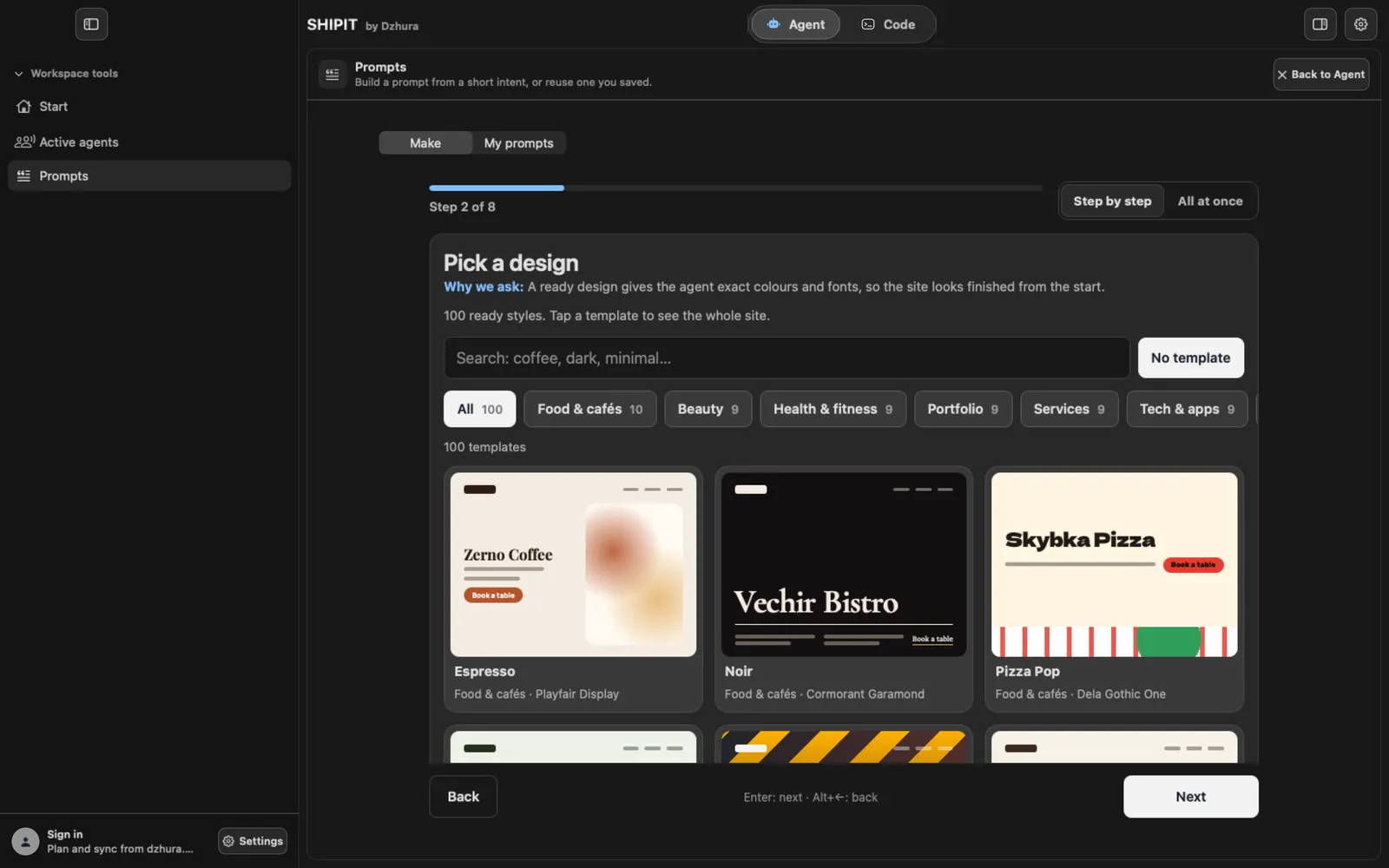
Click Prompts in the sidebar. It is there on every level. The button at the top right takes you back.
-
02Two sections: Make and My prompts
Make: a website, a Telegram bot or a reminder. You answer simple questions and the builder writes the prompt for you. My prompts: the library of saved prompts.
Beginner and Intermediate open on Make, Pro opens right on the library.
-
03From an idea to a clear brief
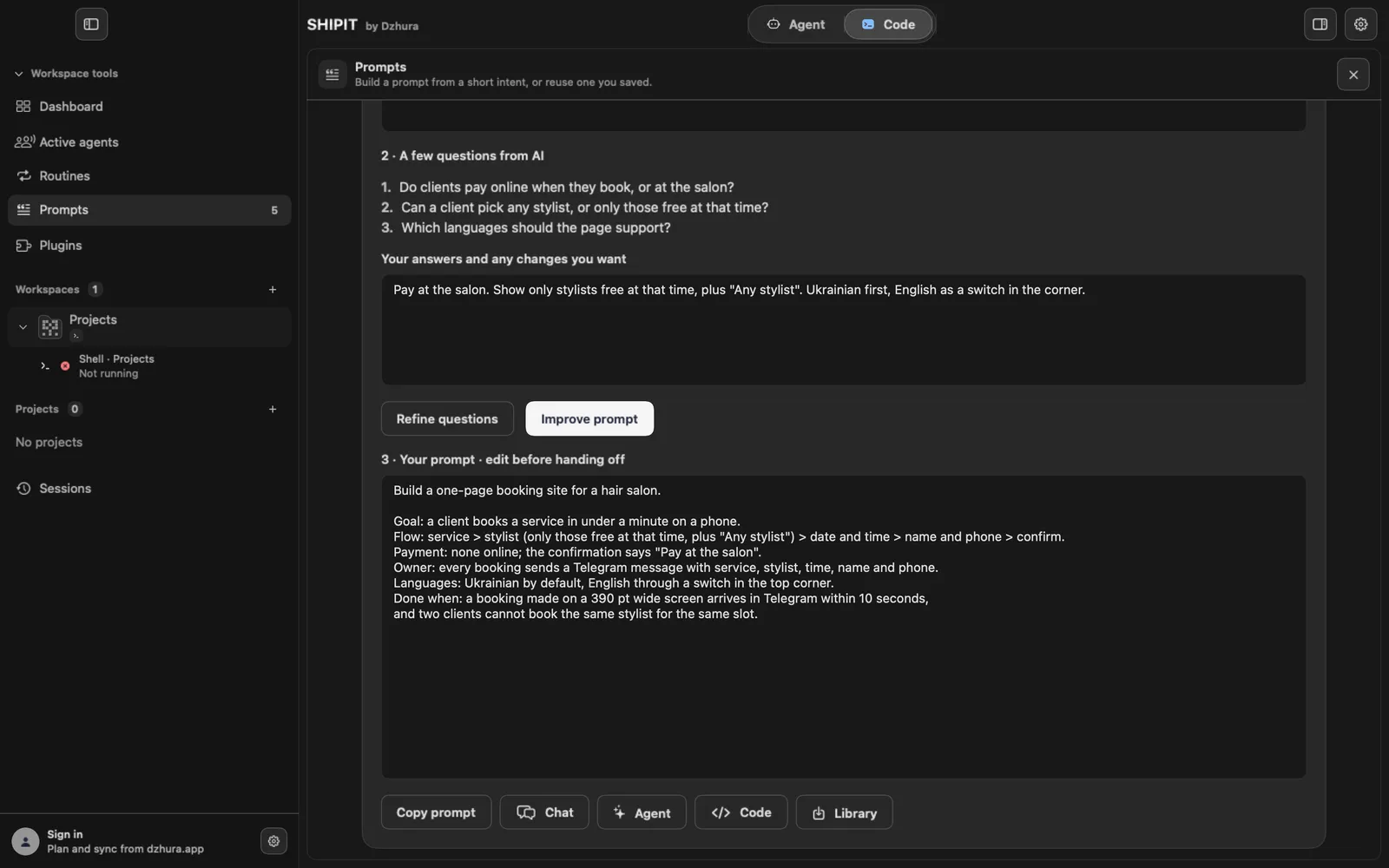
At the top of My prompts is the Turn an idea into a clear brief panel. Describe what you want, click Ask me questions, answer, then Build detailed prompt.
Copy the result with Copy prompt, send it straight to Chat, an agent or Code, or save it to the library.
TipThe panel needs an AI connected on this Mac. Without one it points you to Settings.
-
04Add your own prompt
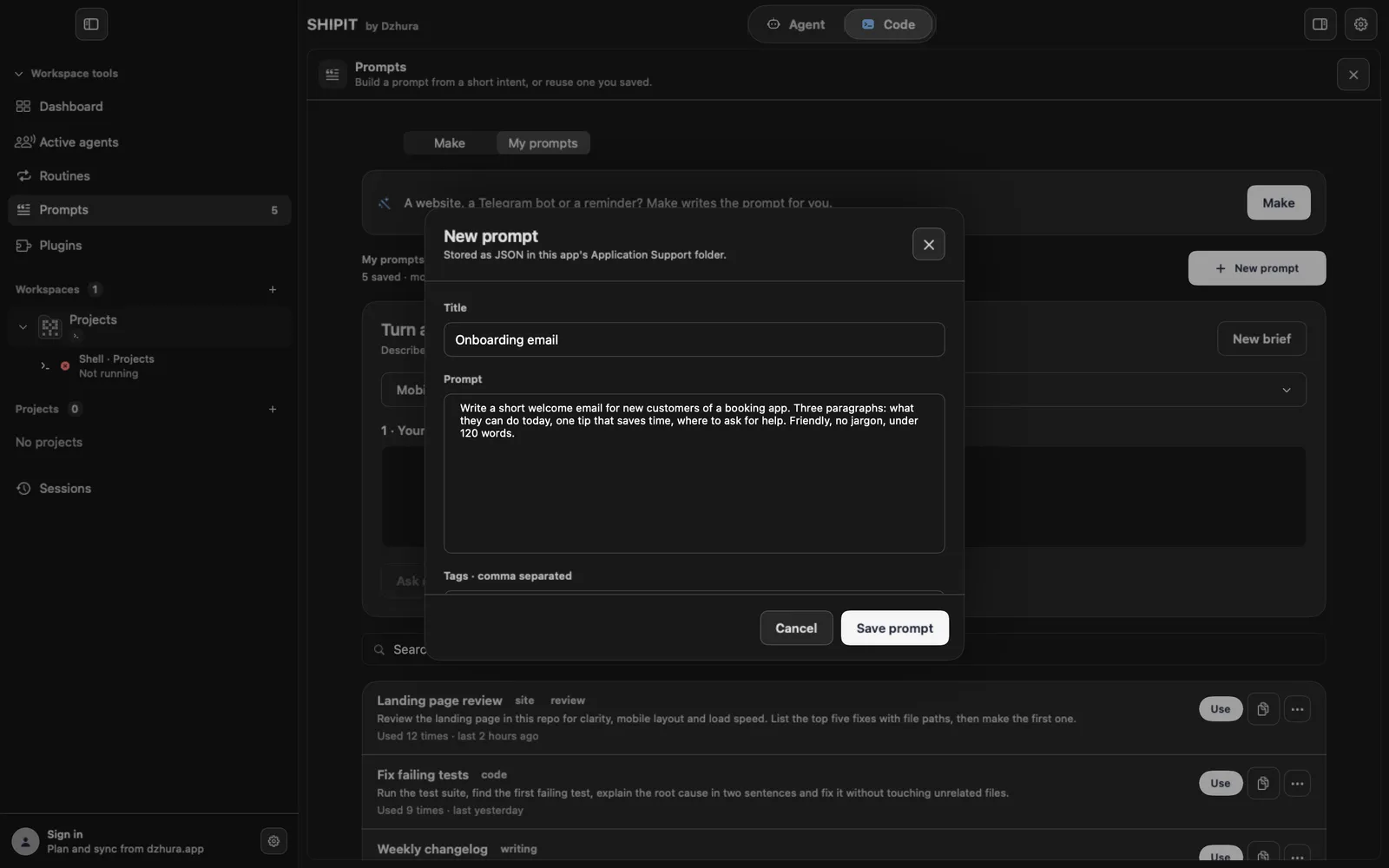
New prompt opens a form: Title, Prompt and Tags · comma separated. Then Save prompt.
Prompts are saved on this Mac.
-
05Use a prompt
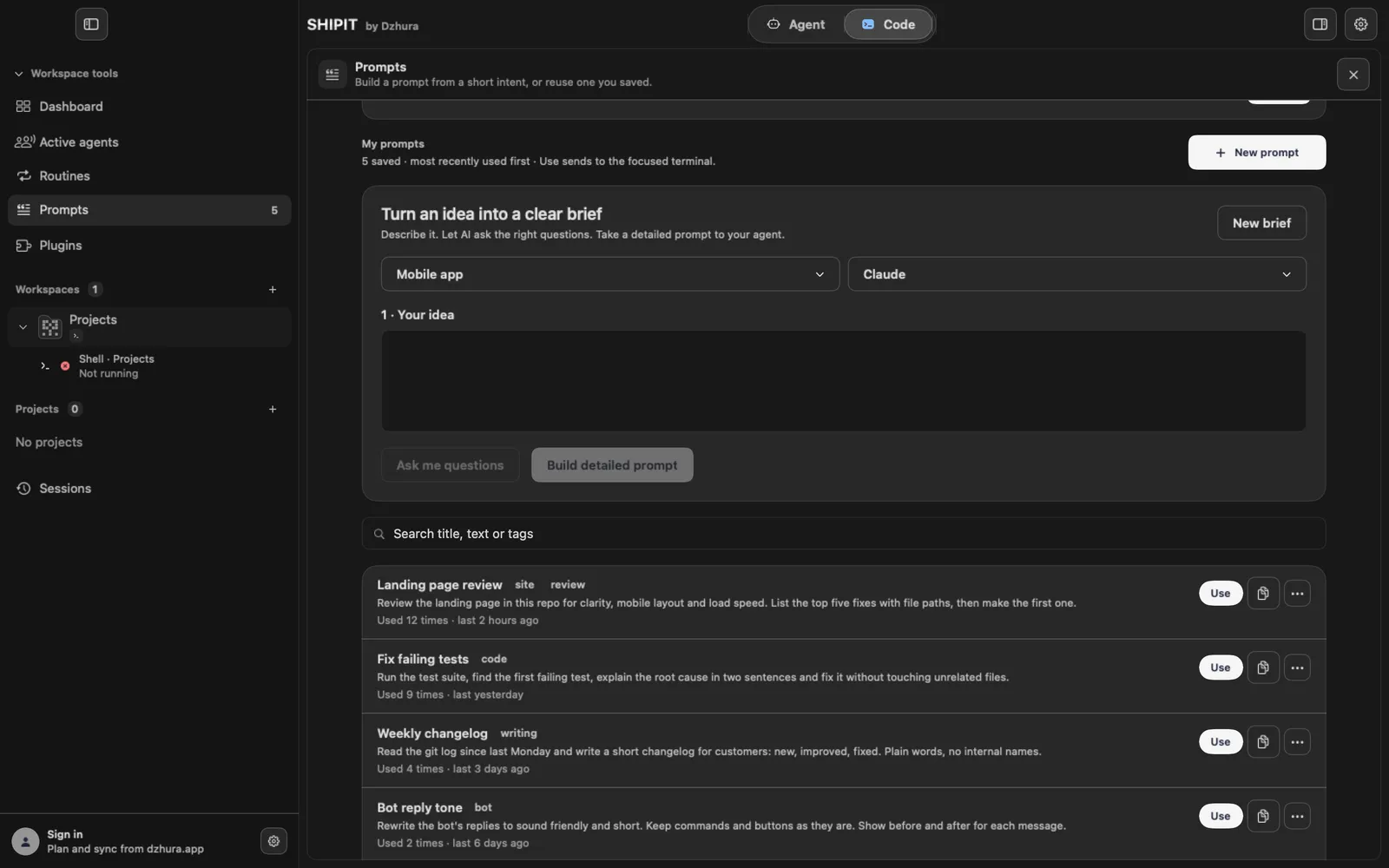
Use puts the text where you were working: the agent composer, the chat composer or the focused terminal in Code. Then SHIPIT takes you back to that tab. You send it yourself.
The button with two sheets copies the prompt to the clipboard.
-
06Search and order
The most recently used prompts come first. The search above the list looks through titles, text and tags.
The three-dot menu next to a prompt, or a right-click: Edit, Duplicate, Delete.
Tips
- Name a prompt the way you will search for it a month from now.
- Tags help once you have more than ten prompts: site, bot, review.
Questions
Does a prompt send itself?
No. Use only puts the text into the field, and you send it.
Where are prompts stored?
On this Mac. A deleted prompt is gone from the library on this Mac.
Next
- Chat: conversations, the composer and handing over to an agentChat is for thinking things through. When it is time to change something, an agent or a Code pane takes the conversation, and nothing has to be retyped.
- Your first task for an agentYou will create an agent, give it a folder and send its first task. It takes a few minutes.
- The Agent tab at a glanceIn three minutes you will know how the Agent tab is laid out: who is on the team, where the chats are and where to type a task.