Usage and limits
The Dashboard shows how much is left in each subscription window and when it resets, so you do not hit a limit mid-task.
-
01Open the Dashboard
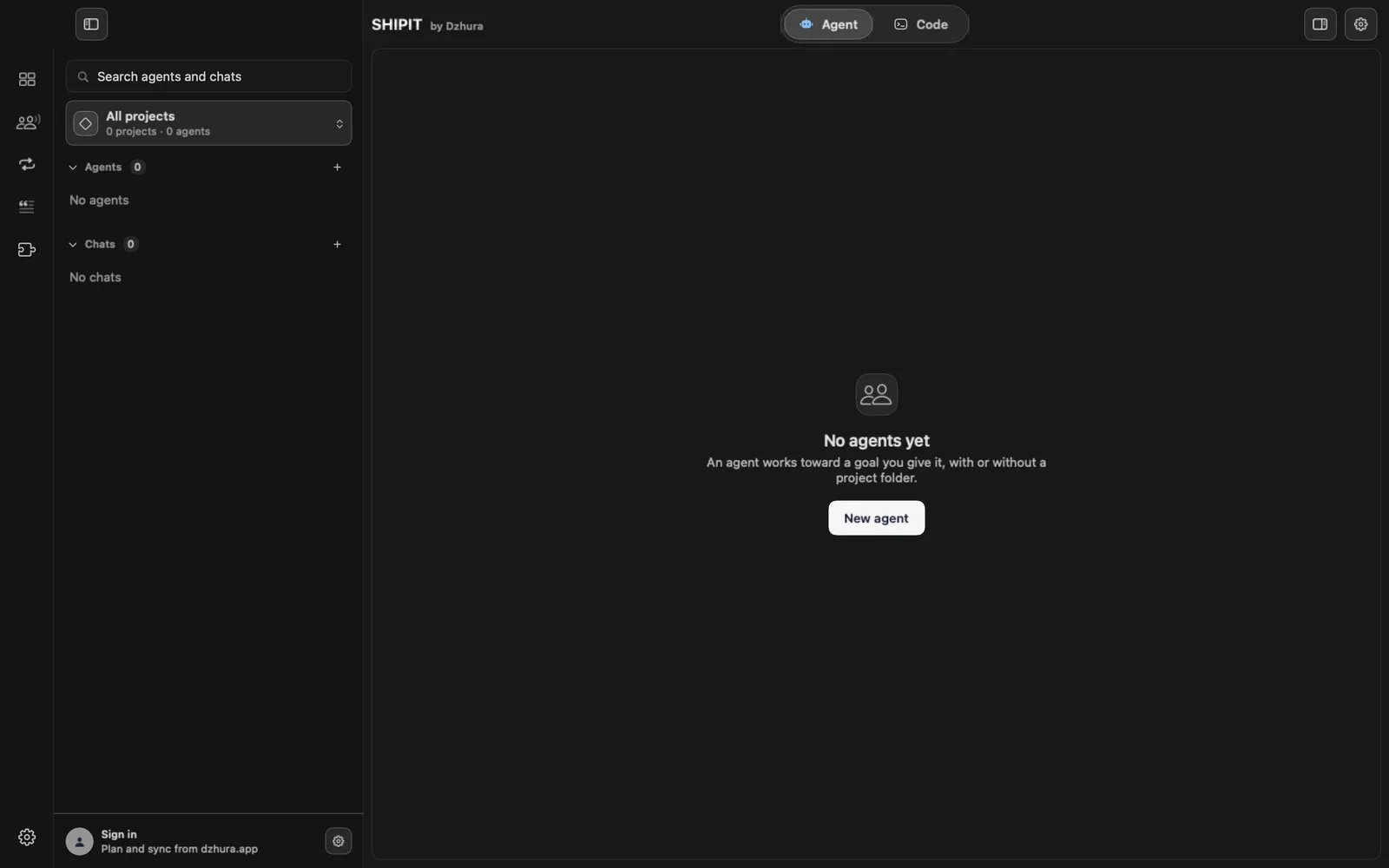
Click the first icon in the left rail: Dashboard.
-
02The Limits section
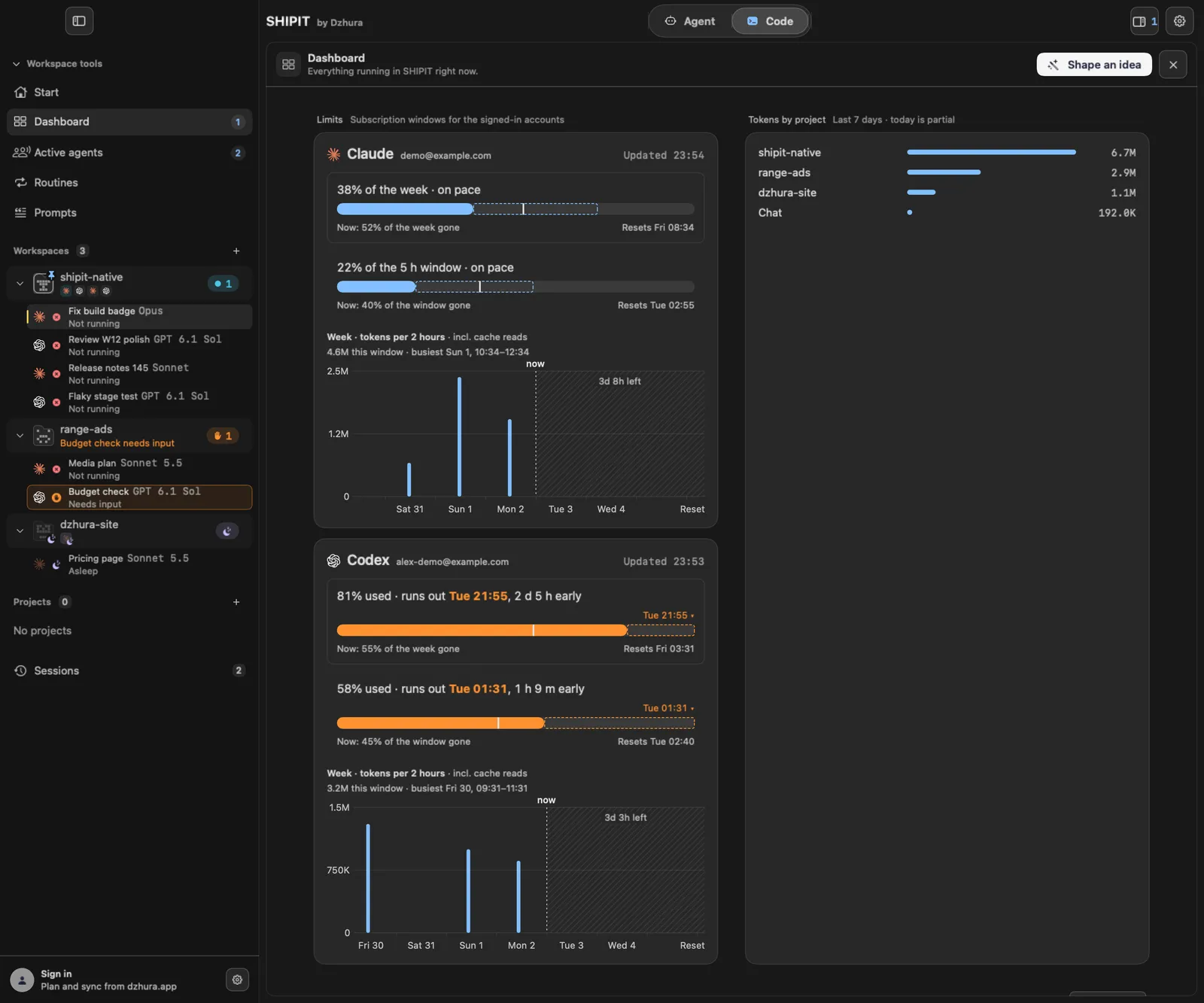
Limits shows the subscription windows for the signed-in accounts. One card per window.
-
03Read a card
A card shows how much of the window is used, whether you are on pace and when it Resets. If you spend faster than time passes, it says when the limit runs out early.
-
04When the reading is old
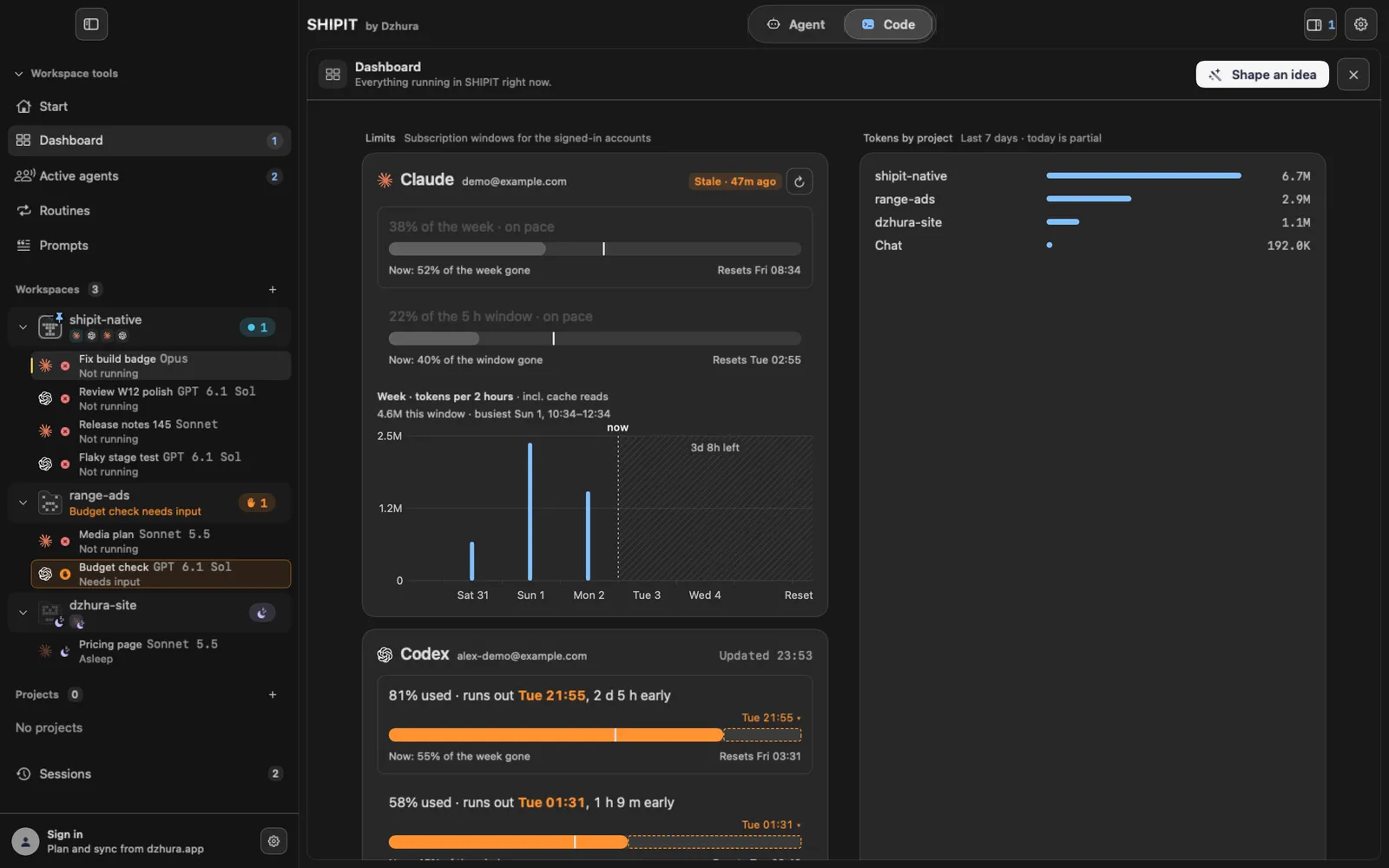
Stale means the numbers have not refreshed for a while. Click the refresh button next to it. If that fails, use Retry.
-
05Token usage
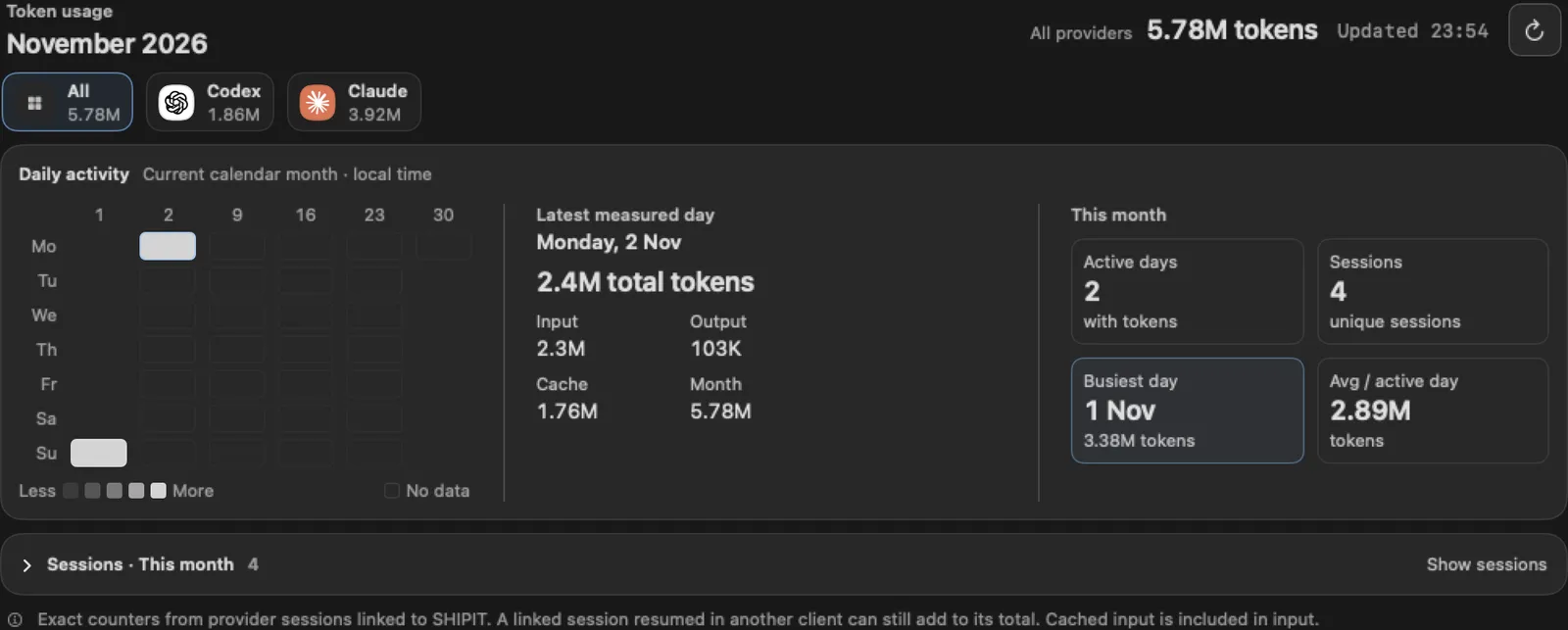
Below is Token usage: how many tokens the work took.
-
06Use less
For routine work pick a lighter model or lower effort. Keep Parallel chats off when a limit is close.
Tips
- Check the Dashboard before a big job, not in the middle of it.
- Prices and plans are on the site's pricing page.
Questions
Why does a card say No reading yet?
SHIPIT has not received numbers for that account yet. Wait a little or refresh by hand.
Next
- Models and effortYou can set model and effort per chat, per teammate and as defaults. What each model is good at is explained on the Models page.
- Run several agents at onceBy default SHIPIT runs one agent turn at a time. Here you turn on parallel work and set a cap.
- The Agent tab at a glanceIn three minutes you will know how the Agent tab is laid out: who is on the team, where the chats are and where to type a task.