Pane settings
Every pane has its own settings: what runs in it, in which folder and with which model. Changes take effect after the pane restarts.
-
01Open the settings
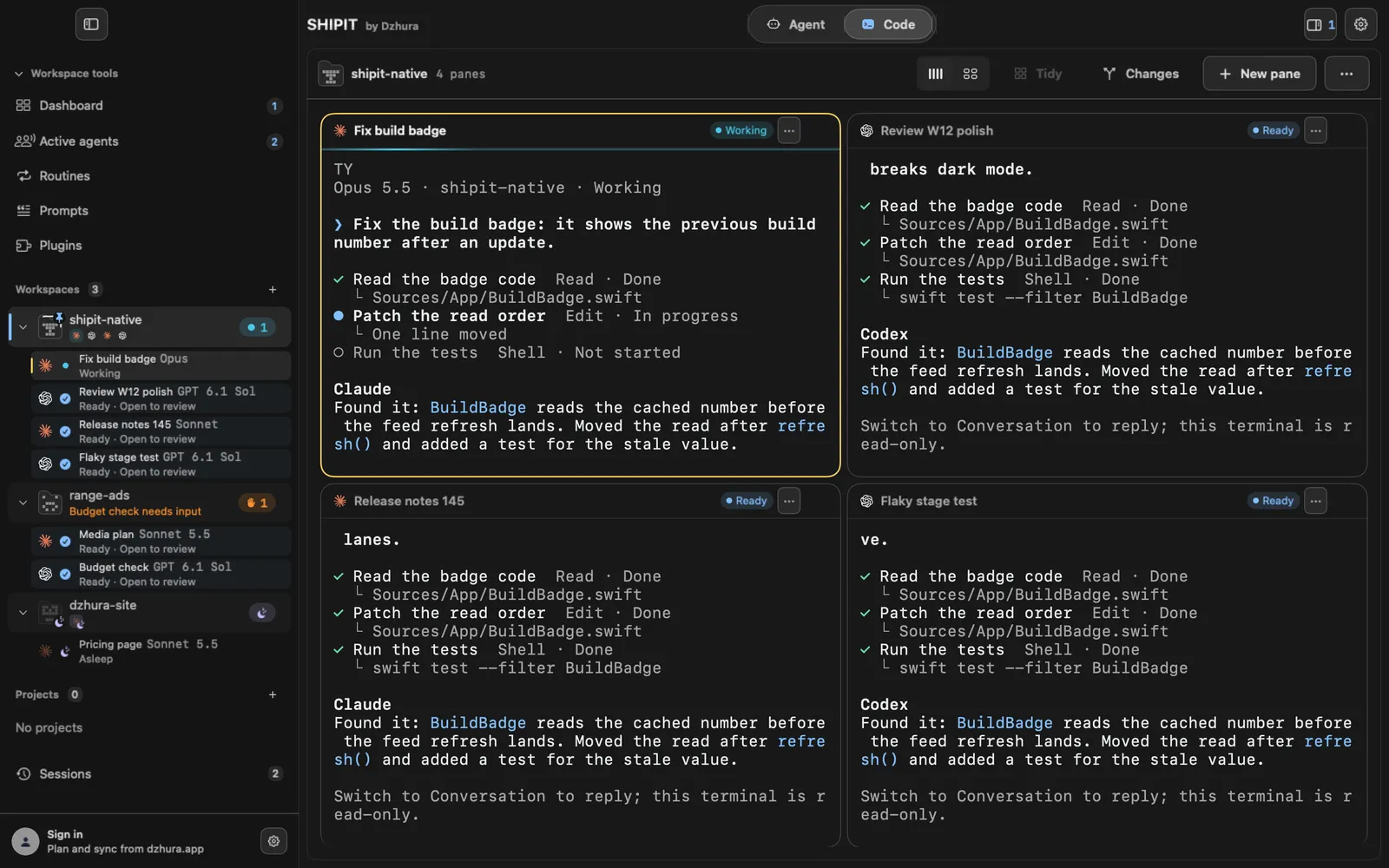
Click the three dots in the pane header and pick Open pane settings. Or right-click the pane and pick Pane settings.
A side panel with the settings opens on the right.
-
02From the agent's field
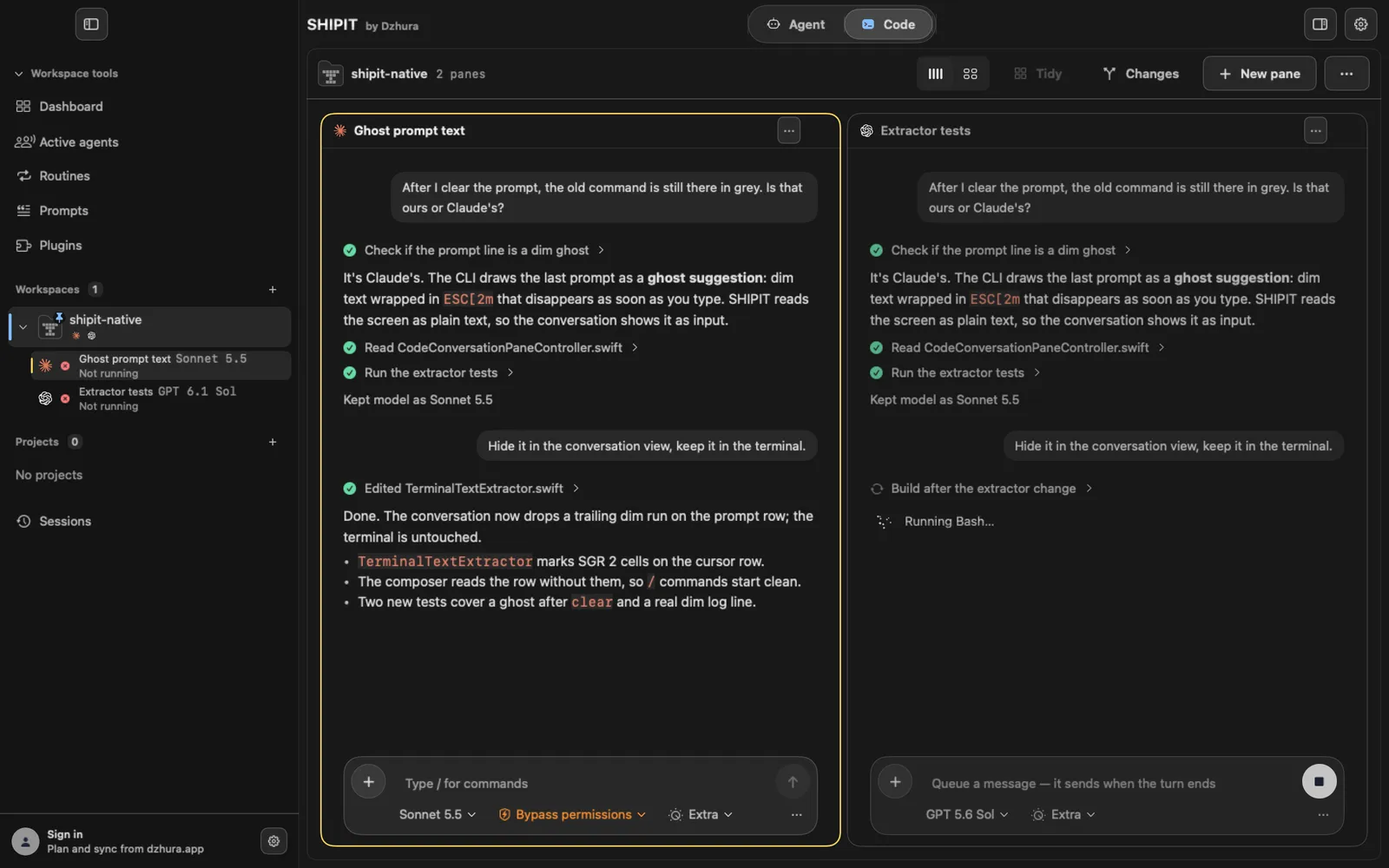
In an agent pane, Model and settings… in the three-dot menu next to the field opens the same panel.
-
03Name, folder, process
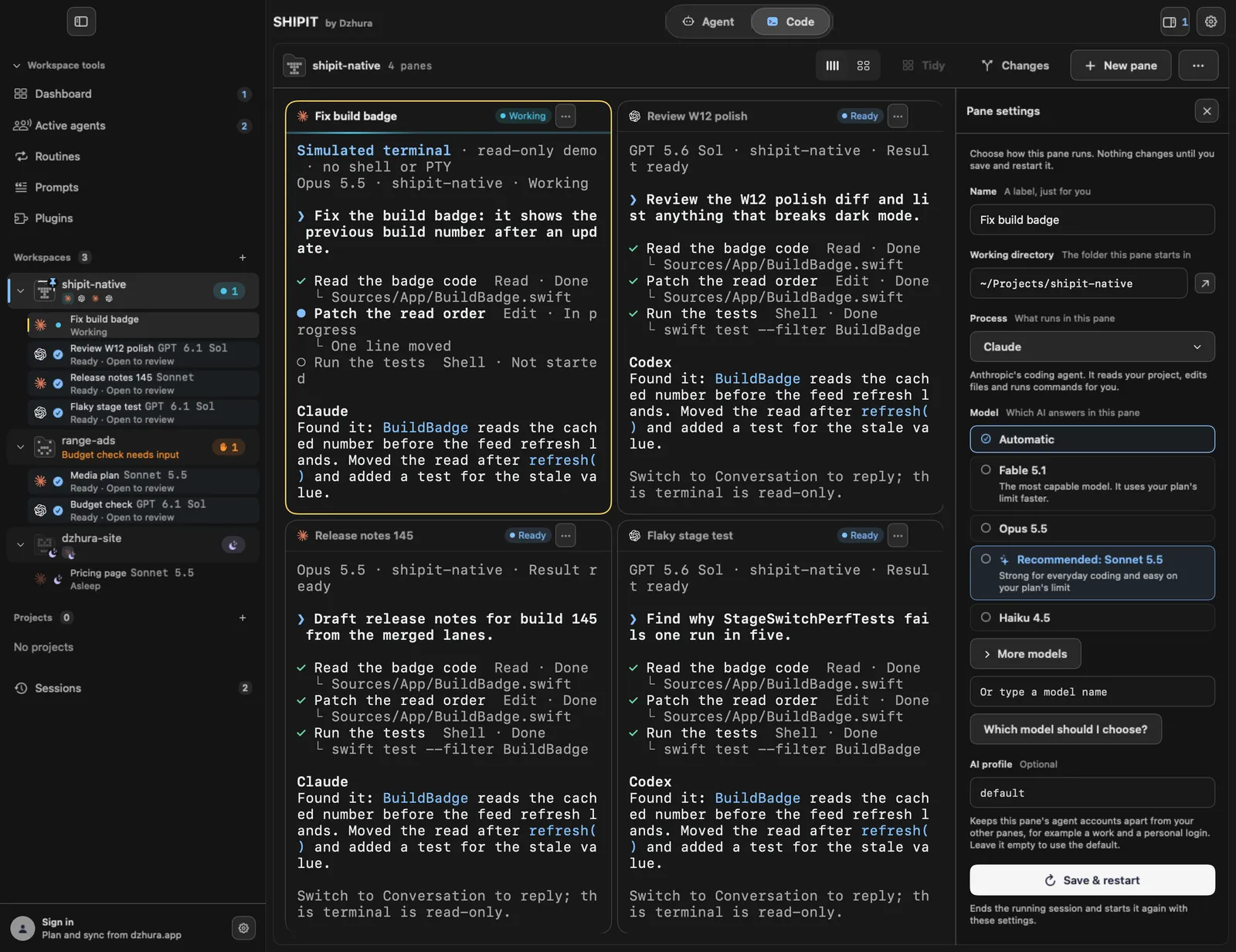
Name is A label, just for you. Working directory is The folder this pane starts in. Process is What runs in this pane: a terminal, Claude Code, Codex or a browser.
Under the process picker, a short note says what it does.
-
04Model
For an agent, Model decides Which AI answers in this pane. Automatic leaves the choice to the agent, More models opens the full list, and Or type a model name takes any name.
For advice on choosing, follow Which model should I choose?, which leads to dzhura.app/en/models.
-
05AI profile
AI profile is optional. It keeps this pane's agent accounts apart from the others.
-
06Save and restart
Nothing changes until you click Save & restart. The button ends the running session and starts it again with the new settings.
Tips
- Name panes after their task so you find them quickly in the sidebar.
- A restart ends the running session, so wait until the agent finishes its turn.
Questions
What if I close the settings without saving?
Nothing changes. New settings apply only after Save & restart.
Where can I read which model to choose?
On dzhura.app/en/models, where Which model should I choose? leads.
Next
- The Claude Code paneClaude Code works in your project folder: it reads code, edits files and runs commands. You steer it from the field at the bottom of the pane.
- The Codex paneCodex is a coding agent from OpenAI. You describe the task, and it works in the project folder.
- The browser paneA browser pane shows a page next to the agent and the terminal. Handy for looking at a site you have just built.