Reminders and automations in SHIPIT
A morning summary, birthday greetings, a message before a calendar event. You describe when and what, and the agent picks the simplest way that needs no server of your own.
-
01Pick Reminders on Start
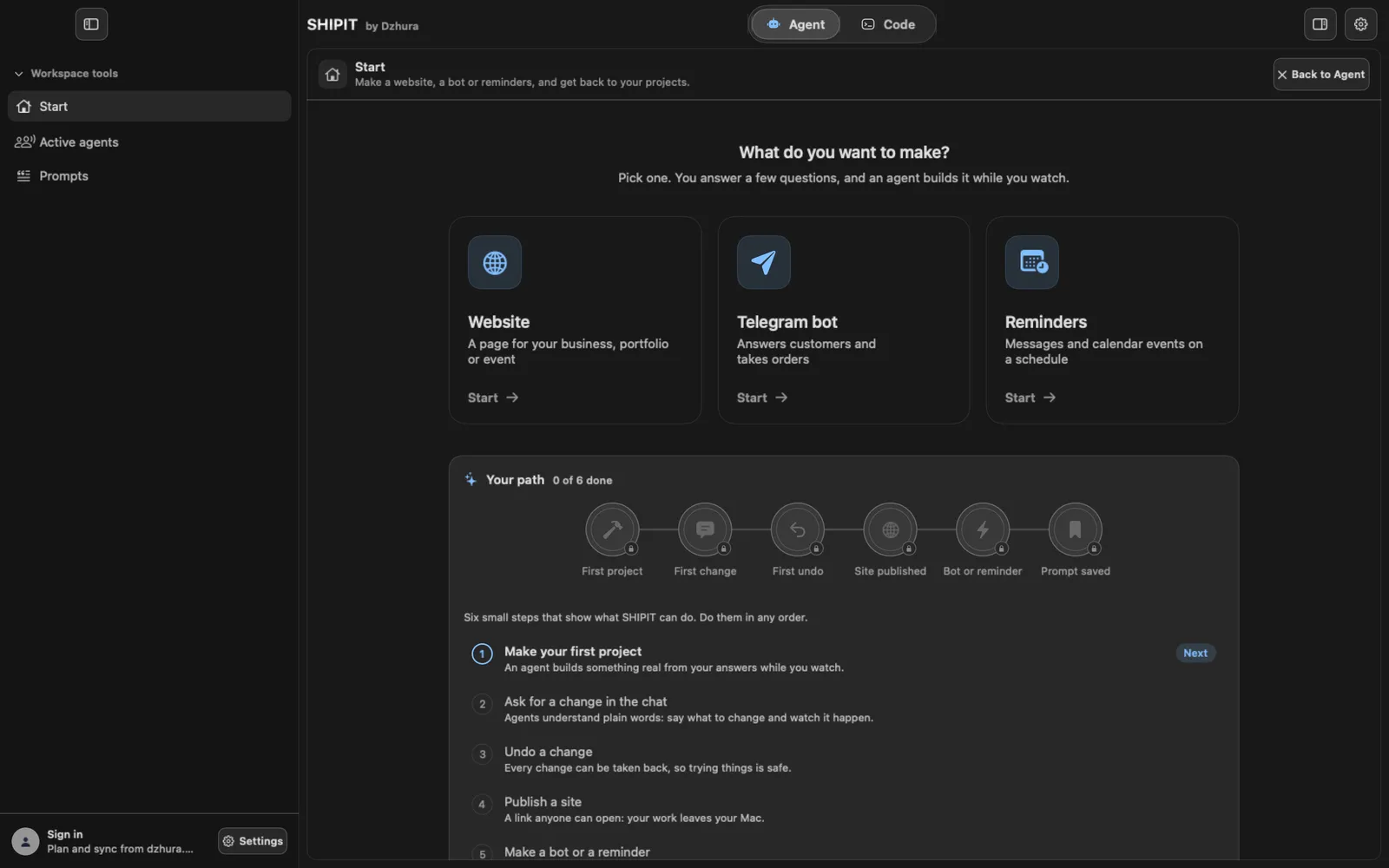
Open Start and click the Reminders card: Messages and calendar events on a schedule. The builder opens under Prompts › Make.
-
02Or right after setup
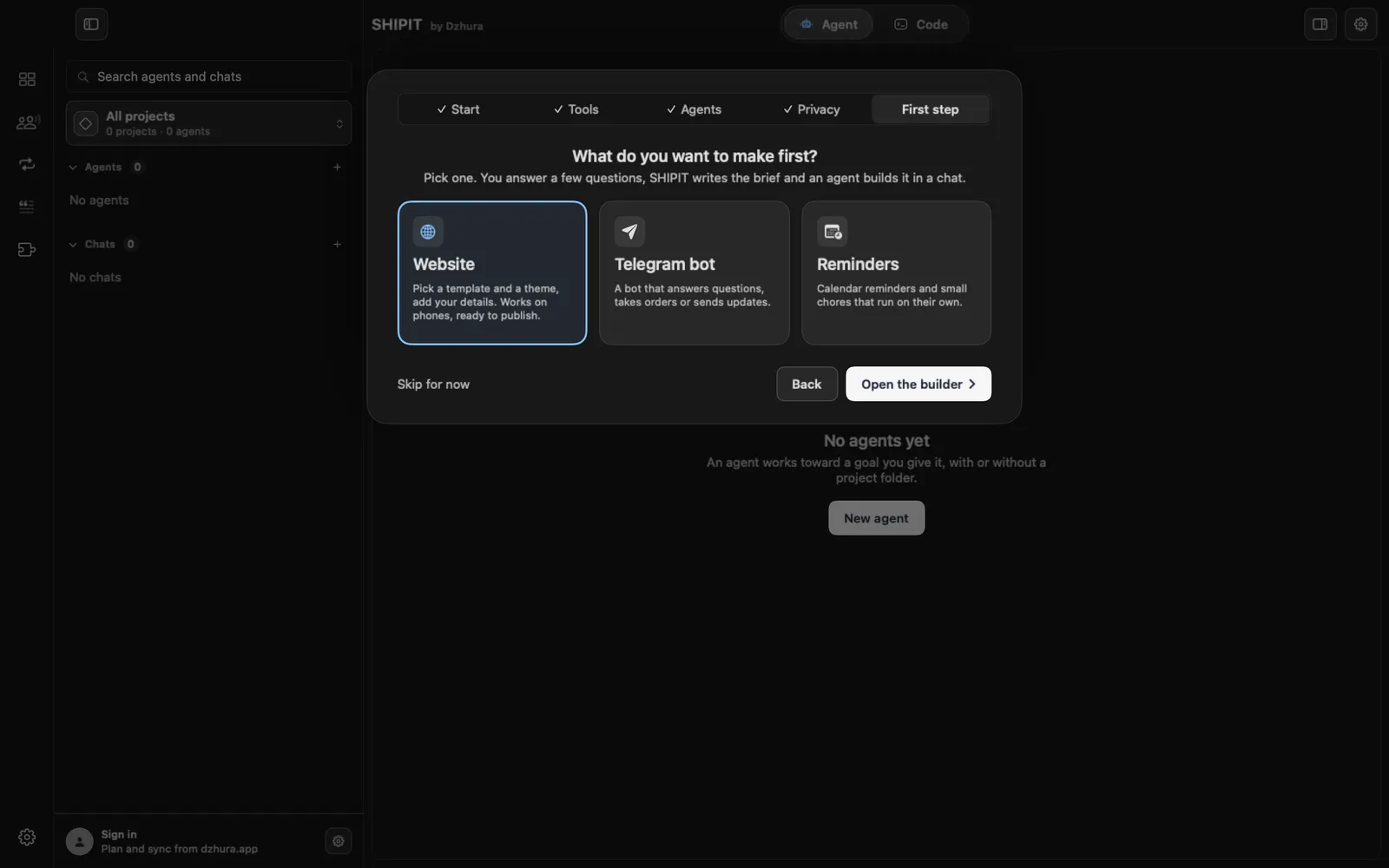
On the First step screen of the first-run setup, pick Reminders: Calendar reminders and small chores that run on their own. Then Open the builder.
-
03What, when and how
What are we automating?: for example Morning summary or Birthday greetings. When should it run?: On a schedule, Before a calendar event, New row in a sheet or New email.
What should it do?: Telegram message, Calendar event, Email, several if you like. Then When exactly?, Details in your own words and Message language.
-
04Build it in SHIPIT
Press Build it in SHIPIT. SHIPIT makes a folder
~/SHIPIT/namewith the task inBRIEF.mdand opens the project in the Code tab with the agent in a chat.The task tells the agent to pick the simplest way without a server: Google Apps Script when the data is in Google Calendar, Sheets or Gmail, otherwise a small Python script on your Mac.
-
05Three steps you do yourself
The agent writes the code, a plain-words README and a test-run function so you see the result at once. The README ends with exactly three setup steps that you do yourself.
Telegram messages need a bot from @BotFather and your chat id. How to get them, and more examples: Reminders and automations.
Tips
- The agent keeps the bot token and chat id in Script Properties or a .env file, never in the code.
- Start with a test run and only then turn on the schedule.
- Back to the automation later: Start › My projects › Open.
Questions
Does the Mac have to stay on?
Google Apps Script runs at Google, so it does not need your Mac. A local Python script only runs while the Mac does.
How is an automation different from a bot?
A bot answers people when they write to it. An automation fires by itself: on a schedule, before an event, on a new row in a sheet or on a new email.
Next
- A Telegram bot in SHIPIT: where to startSHIPIT turns your answers into a task for the bot and opens a project where an agent writes the code. The token, testing and where the bot lives are covered in detail by the Telegram guides.
- A website in SHIPIT: from questions to publishingYou answer a few simple questions, an agent builds the site while you watch, and SHIPIT shows it next to the chat. At the end you can put the site online for free.
- Your first task for an agentYou will create an agent, give it a folder and send its first task. It takes a few minutes.