Levels and tabs: Beginner, Intermediate, Pro
The level decides how much SHIPIT shows at once. Nothing is locked: the level and the tabs change any time.
-
01Three levels
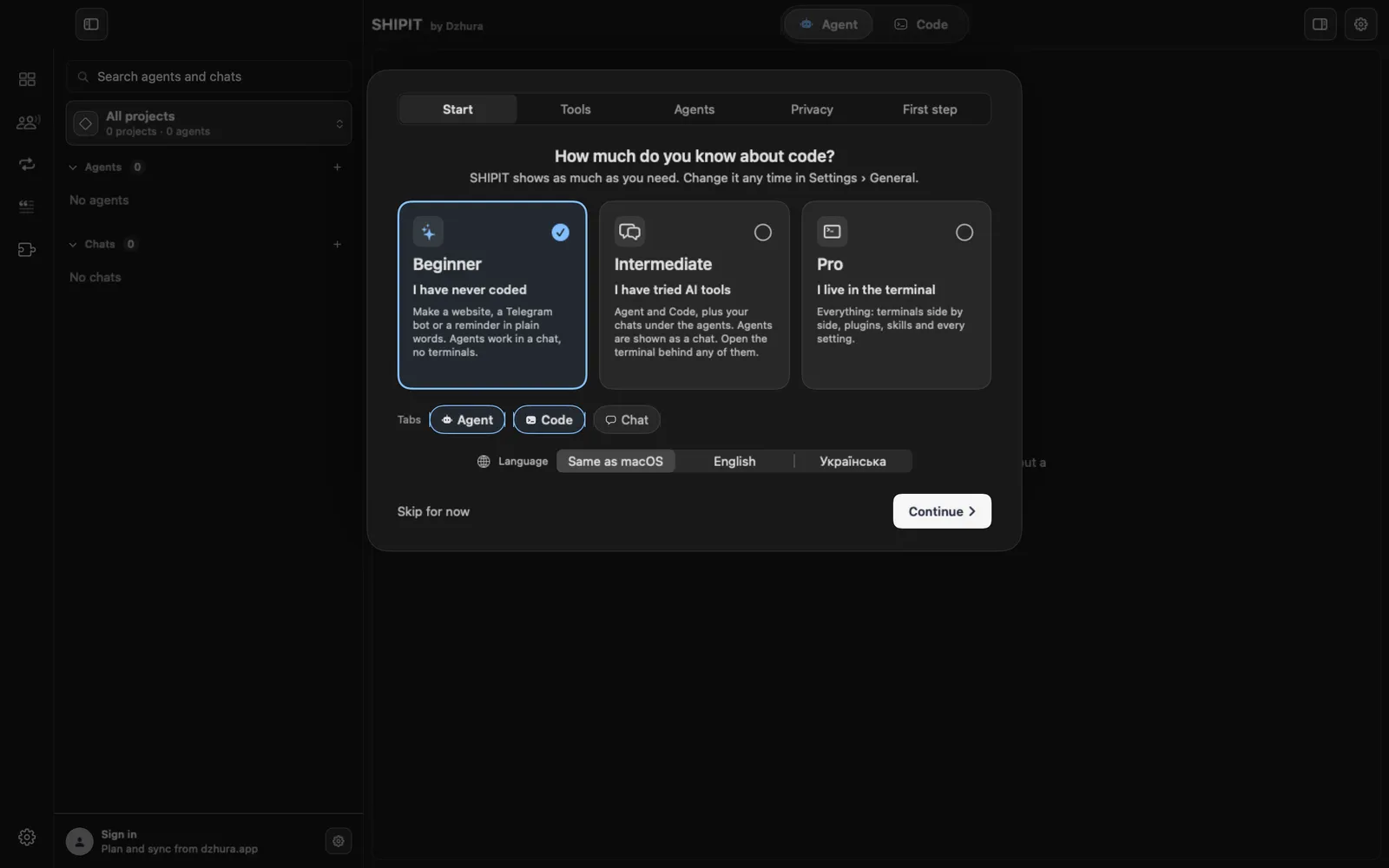
Beginner: you have never coded. A website, a Telegram bot or a reminder in plain words; agents work in a chat, no terminals.
Intermediate: you have tried AI tools. Agents look like a chat, and you can open the terminal behind any of them. Pro: everything at once, terminals side by side, plugins and every setting.
-
02Two tabs at the top: Agent and Code
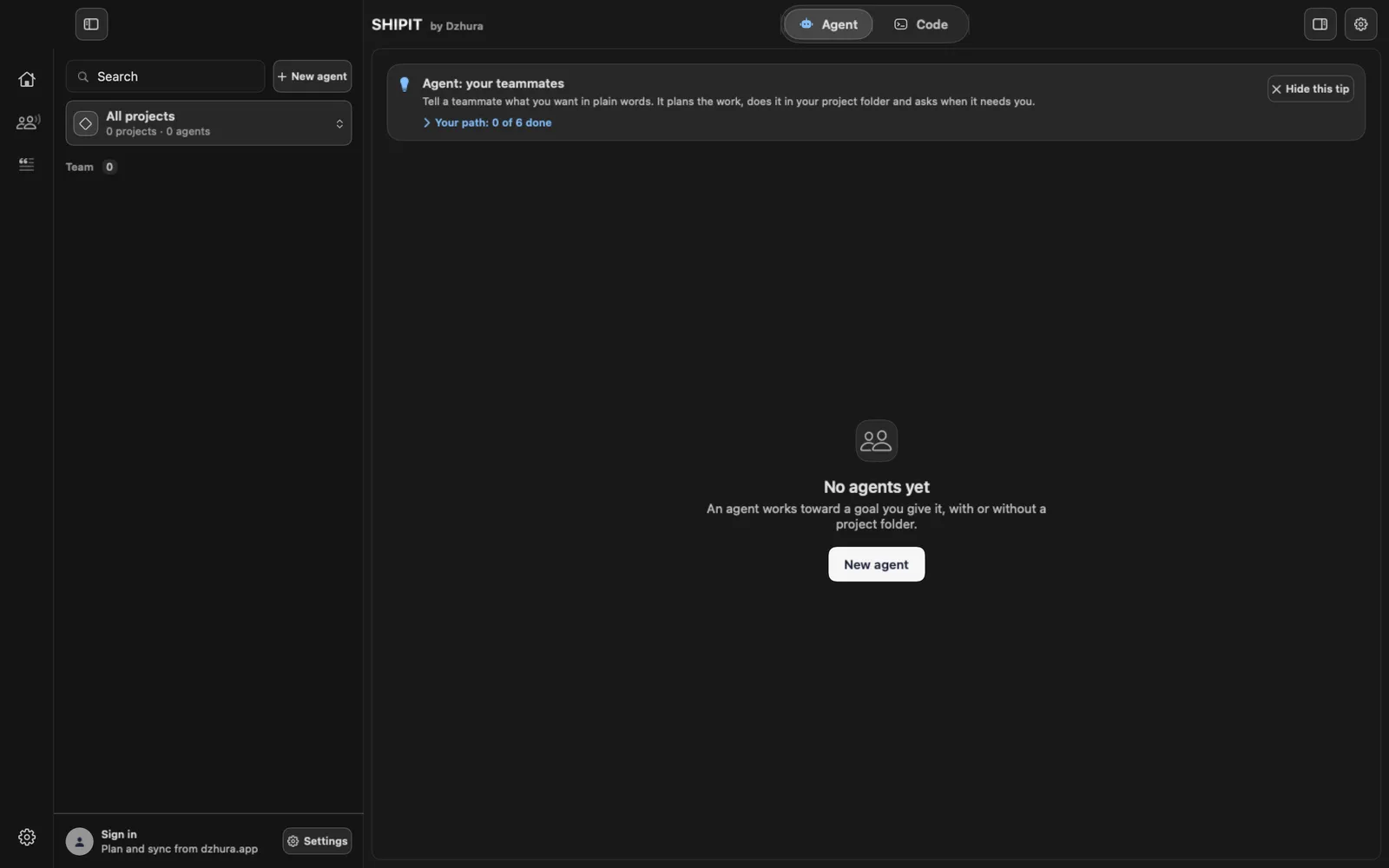
The switcher at the top has two tabs. Agent: your teammates, whom you tell in plain words what to do. Code: panes with agents and terminals in a project folder.
Chat is not a tab of its own but a section inside the Agent tab, even where the level text lists it next to Agent and Code.
-
03The sidebar follows the level
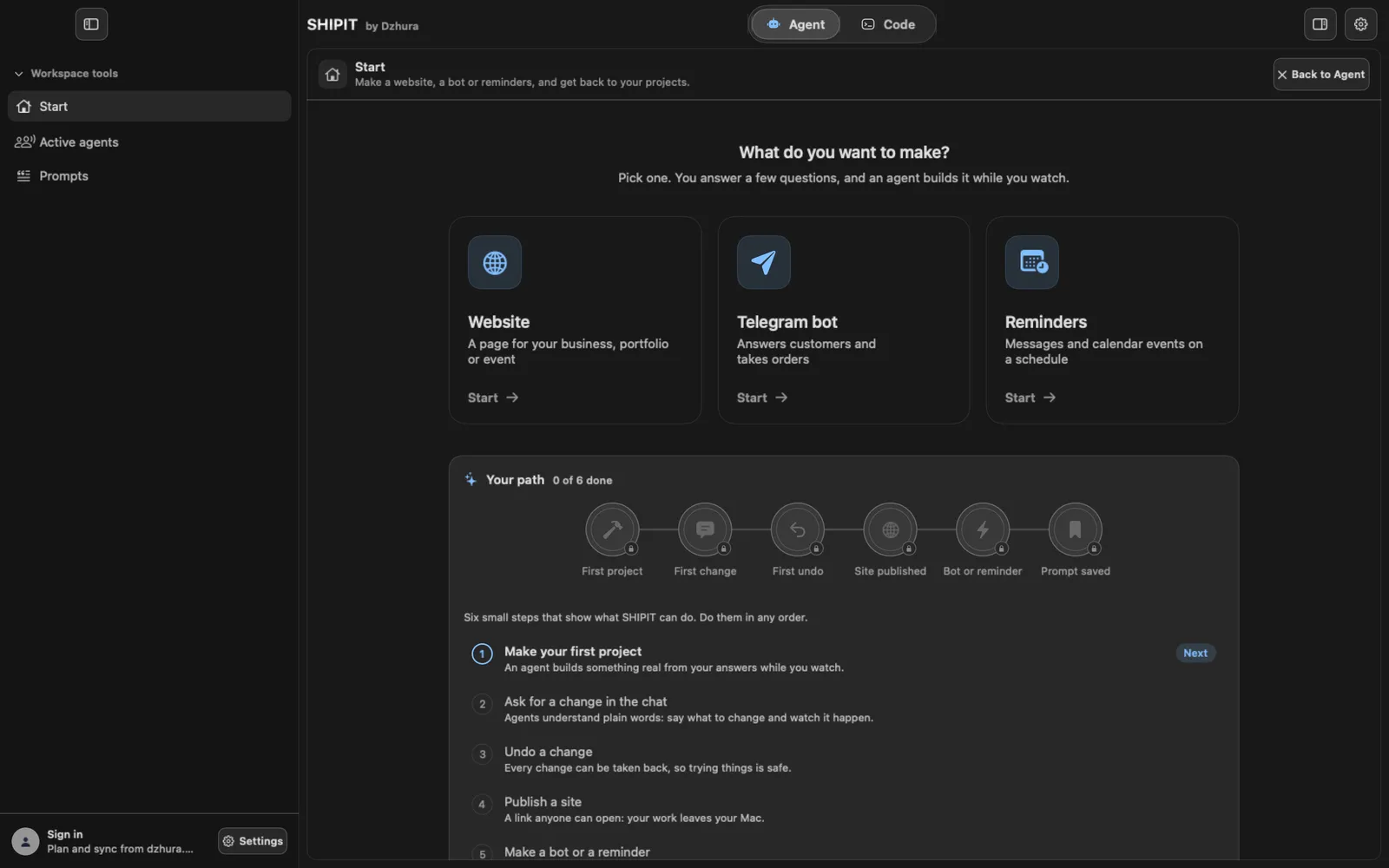
A Beginner has three items on the left: Start, Active agents and Prompts. Intermediate adds Dashboard and Routines. Pro has no Start and adds Plugins.
-
04Your path: six steps
The Start screen has a Your path card: six small steps that show what SHIPIT can do. First project, First change, First undo, Site published, Bot or reminder, Prompt saved. Do them in any order.
-
05The offer to move to Intermediate
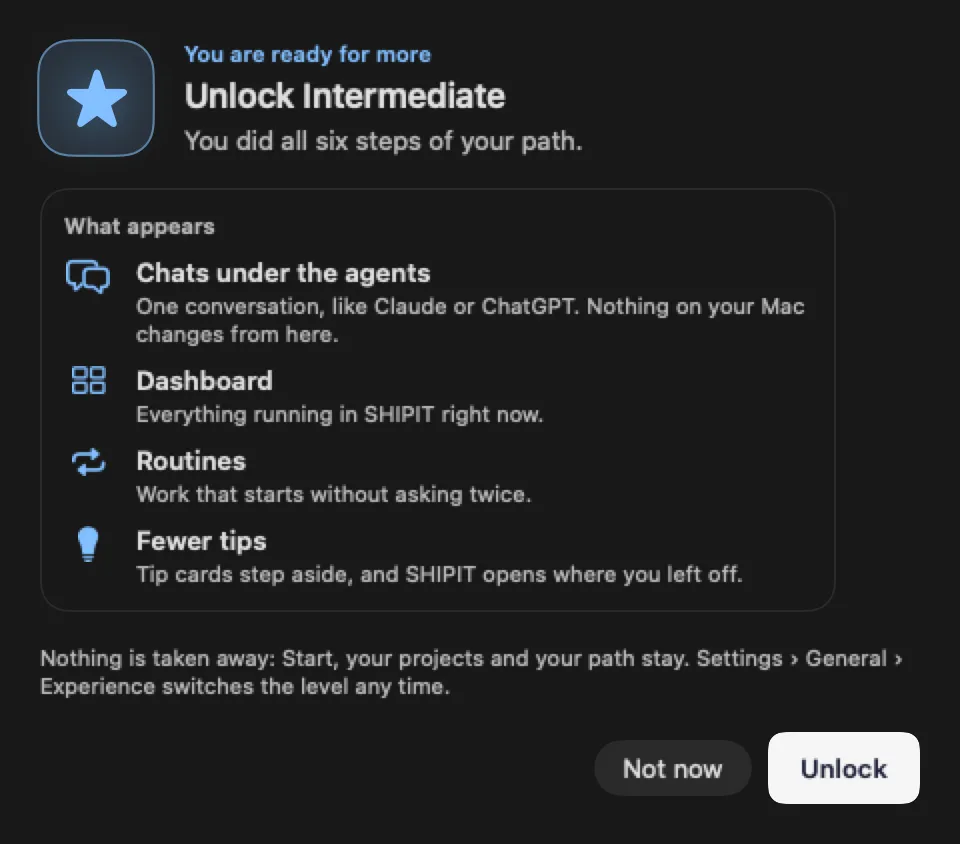
Once all six steps are done, or after 50 active hours, SHIPIT offers to move you to Intermediate. Not now hides the offer for 10 hours.
It is only an offer: nothing is locked, and you can change the level yourself any time.
-
06Change the level and the tabs
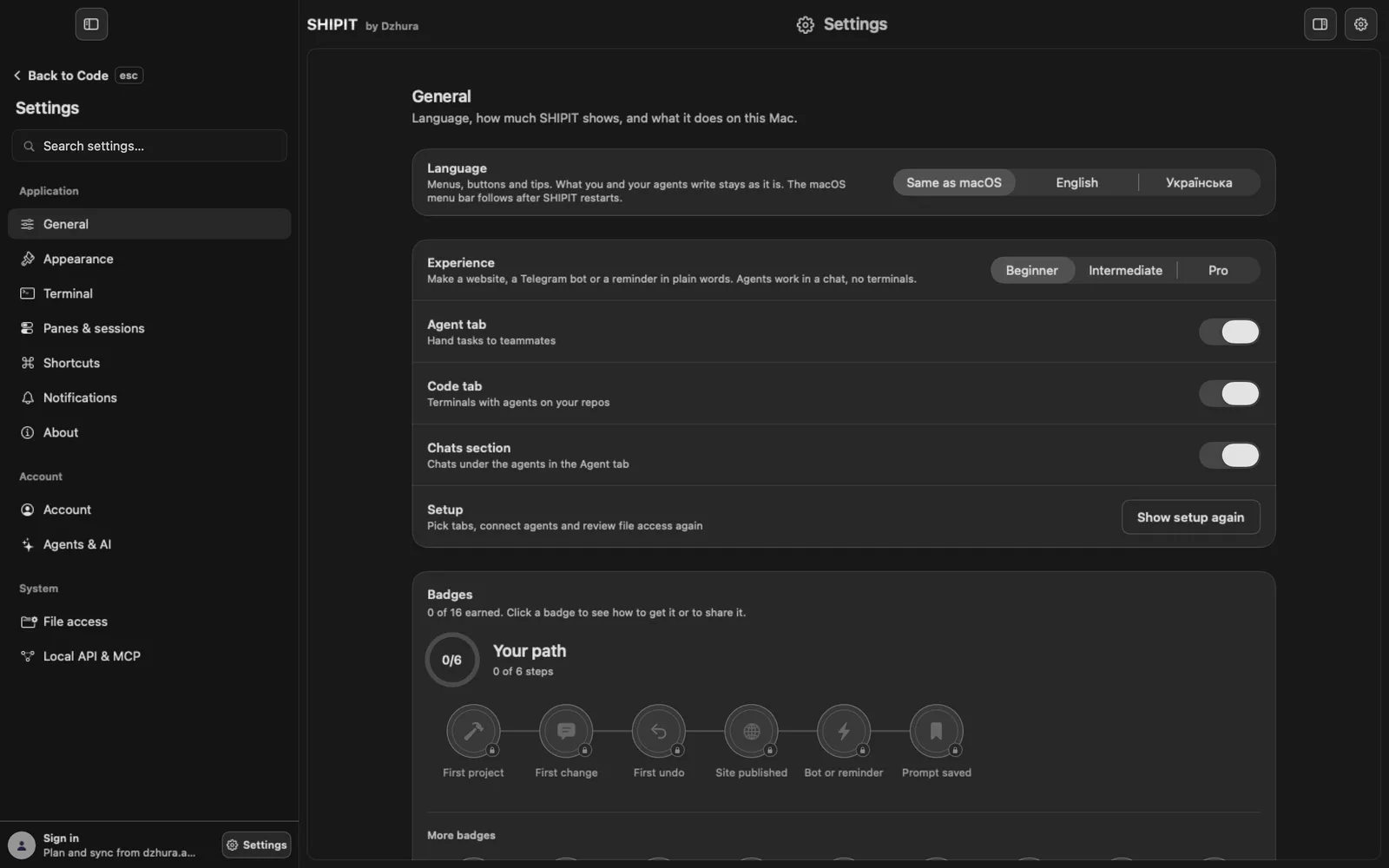
Open
Settings › General. Experience picks the level. Below it are the switches Agent tab, Code tab and Chats section: keep the level and hide or add a single tab.
Tips
- Not sure? Start as a Beginner and move up when the Start screen feels too small.
- What agents may do without asking is set on the Privacy step, not by the level.
Questions
Is anything locked on the Beginner level?
No, nothing is ever locked. The level decides what is shown at once, and it changes any time.
Where is Chat?
Inside the Agent tab. Turn it on or off in Settings › General, under Chats section.