Attachments and context
Show the agent what to work with: a file, an image, a folder or another conversation. It all goes through + in the field.
-
01Open the + menu
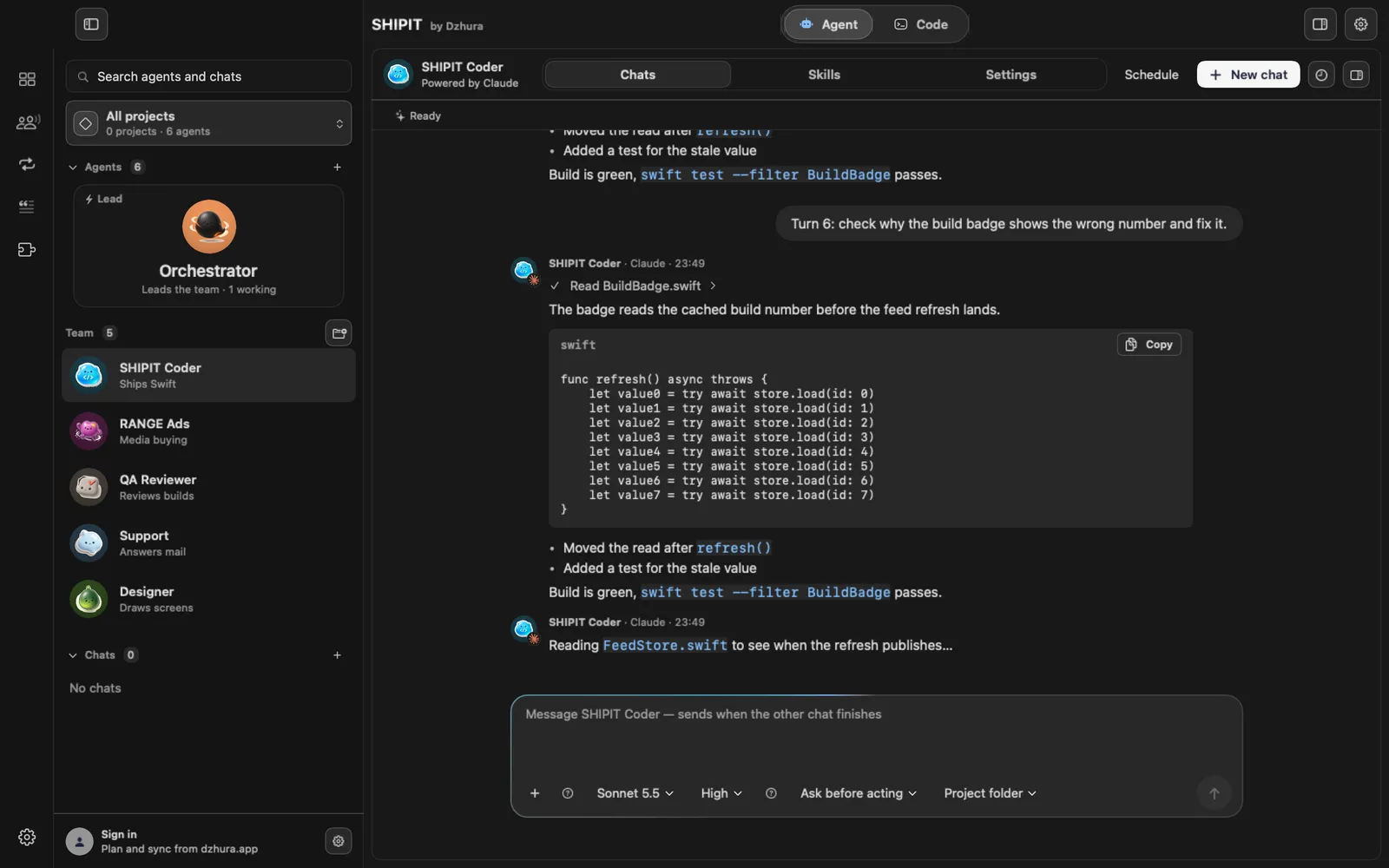
Click + on the left of the field: Attach files or context.
-
02A file, an image, a folder
The top of the menu has Attach a file, Attach an image and Attach a folder. Or drag files onto the field.
The agent can read what you attached, even with Ask before acting.
-
03The Context section
Under Context: Conversation history, Current terminal excerpt, Workspace text file…, Use chat… and Paste context reference.
-
04Add another chat
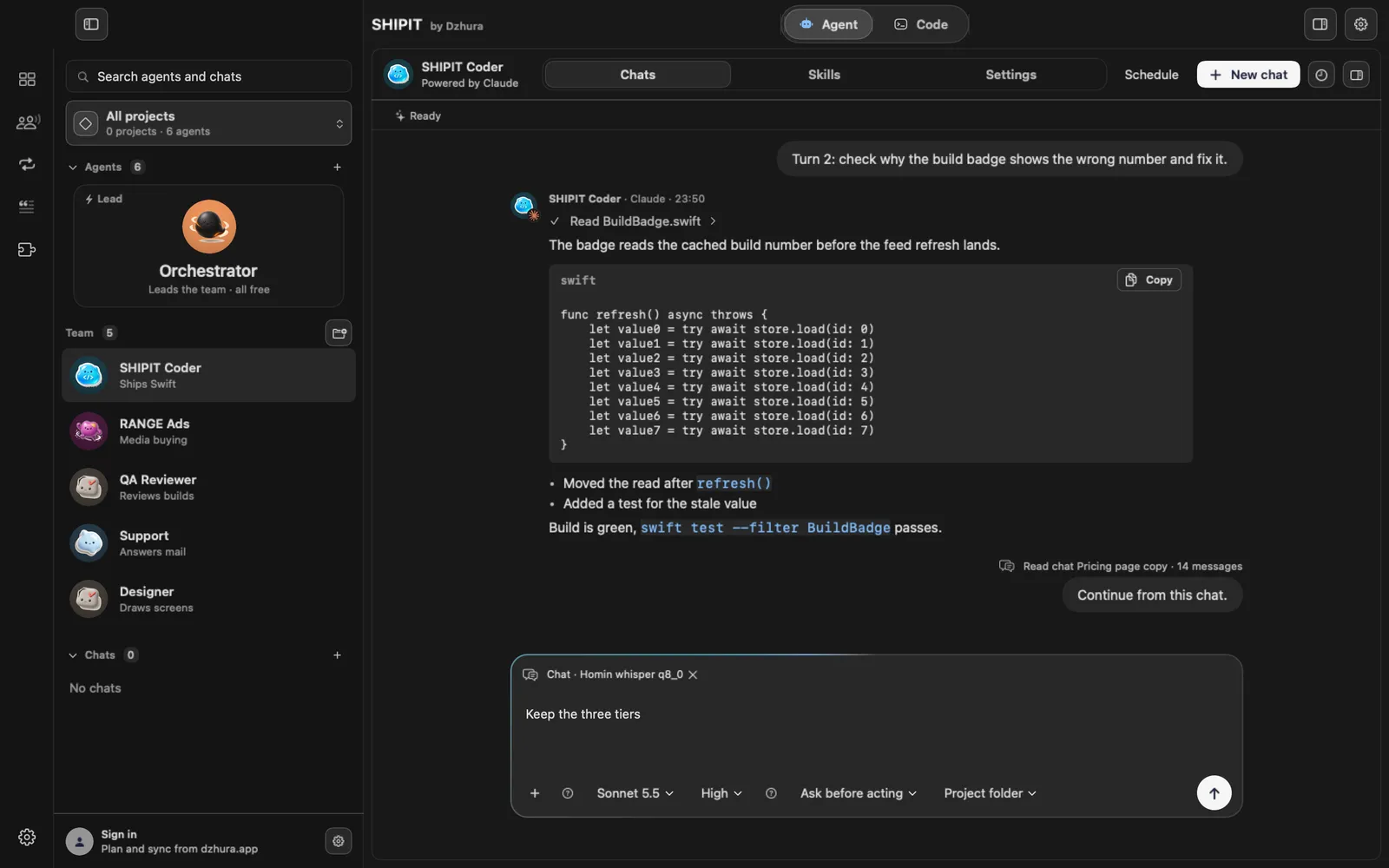
Use chat… or the
/chatcommand adds another conversation as context. It shows as a chip above the field; the cross removes it. -
05Check that the agent read it
When the agent has read the attached chat, its turn shows a line with the chat name and the number of messages.
-
06The project folder
The Project folder pill has three actions: Choose folder, Open folder and Disconnect.
Tips
- One exact file helps more than a whole folder.
- A terminal excerpt with the error saves the agent several search steps.
Questions
Does the agent see my files without attaching them?
It works with the files in its project folder, within its permission. Add anything else with + or by dragging.
Next
- Your first task for an agentYou will create an agent, give it a folder and send its first task. It takes a few minutes.
- Handoffs and the message queueWrite to an agent even while it works: your messages wait in a queue. To give a task to another teammate, hand it off with @.
- Approvals and Ask before actingYou decide what an agent does on its own and what waits for your yes. Here is where to set it.